
Replace Multiple Apps with One AI Tool: Beginner’s Guide to All-in-One AI Productivity
Tired of juggling multiple apps? Learn how one all-in-one AI tool can replace notes, reminders, budgeting, and more—perfect for beginners.
,AI FOR BEGINNERSAI TOOLSTECHNOLOGY & AI
DIPJYOTI SHARMA
2/19/20264 min read
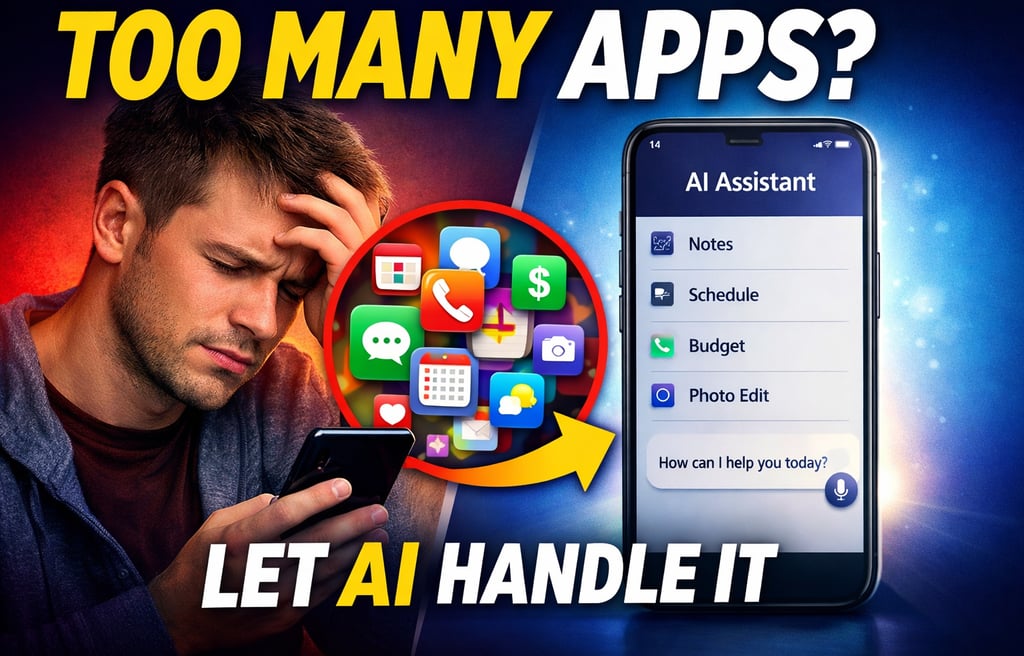
Imagine you’ve just bought a new smartphone, and suddenly you’re juggling five different apps just to keep track of your day—one for notes, another for calendar reminders, a third for budgeting, a fourth for photo editing, and a fifth for chatting with friends.
By the time you finish a simple task, you’ve already switched screens several times, feeling a little frazzled.
That moment of overwhelm is exactly why many people start looking for AI tools replacement solutions. They want to trade the clutter for a smoother, more comfortable digital experience.
When you hear the phrase “replace apps with AI,” think of it as swapping a whole toolbox for a Swiss-army knife. Instead of opening separate programs for each job, you use a single, smarter assistant that can handle multiple tasks in one place.
It’s not magic—it’s convenience.
How Replacing Apps with AI Works (Step by Step)
1. One Platform, Many Functions
Think of a notebook. In a traditional notebook, you might:
Draw a sketch
Write a to-do list
Create a quick diagram
All on the same page.
An all-in-one AI tool works similarly. It can:
Write a paragraph
Turn a list into a calendar event
Suggest edits to a photo
Without you opening another app.
This is the core idea behind all-in-one AI tools: combine several small helpers into one flexible assistant.
2. It Connects Your Tasks Automatically
If you type:
“Dentist appointment next Friday at 4 PM”
The AI can suggest:
Adding a calendar entry
Setting a reminder
Creating a note
If you paste text, it can:
Summarize it
Fix grammar
Turn it into bullet points
Everything happens in the same workspace—no app switching required.
3. It Feels Like a Conversation
Instead of clicking through menus, you type or speak:
“Create a grocery list.”
“Summarize this paragraph.”
“Brighten this image and add a caption.”
The system responds naturally, often asking clarifying questions.
It feels more like texting a knowledgeable assistant than navigating software.
Why This Matters for Beginners
When starting with digital productivity tools, the biggest challenge isn’t lack of features—it’s overload.
Every app has:
Its own login
Its own layout
Its own learning curve
That’s exhausting.
A workflow simplification AI approach keeps everything in one familiar environment, reducing mental load and increasing confidence.
Many beginners worry:
“What if it’s a jack of all trades but master of none?”
For everyday tasks—emails, reminders, simple budgeting, light editing—these tools are more than capable.
They remove the fear of “I’m not tech-savvy enough” and let you focus on actual work.
Real-World Examples Where a Single AI Tool Helps
1. Planning a Weekend Trip
Instead of using:
Maps app
Weather app
Notes app
Calendar app
You can say:
“Suggest a Saturday itinerary near me, check the weather, and add the meeting point to my calendar.”
Done in one place.
2. Completing a School Assignment
A student can:
Draft an essay
Check grammar
Generate citations
All without switching tools.
3. Managing Household Chores
List weekly chores, assign them, and set reminders—all inside one assistant.
4. Designing a Simple Flyer
Describe your flyer, upload an image, and let the assistant:
Suggest layout
Create a headline
Format the design
5. Tracking Personal Finances
Instead of juggling:
Spreadsheets
Receipt scanners
Budget apps
You can:
Enter expenses
Get categorized summaries
Set bill reminders
All in one interface.
Common Beginner Misunderstandings
“It can replace every app.”
Not always.
For advanced tasks (professional video editing, deep statistical modeling), specialized software is still better.
AI consolidation tools are best for everyday tasks.
“It will know everything automatically.”
You must provide clear instructions at first. Over time, it adapts to your preferences.
“It works offline.”
Most AI platforms require internet access because processing happens in the cloud.
“It will be slower.”
While responses may take a few seconds, the time saved from not switching apps often outweighs minor delays.
Easy Steps You Can Try Today
Type: “Create a grocery list.”
Say: “Remind me to water the plants at 7 PM.”
Paste a paragraph and request a summary.
Upload a photo and ask for brightness adjustment + caption.
Ask the assistant to clarify anything confusing.
You only need:
A browser
An internet connection
No complex setup.
Frequently Asked Questions
Is it safe to use one platform for everything?
Reputable services use encryption. Always read privacy policies and avoid sharing highly sensitive information unless necessary.
Will it replace my favorite apps completely?
Think of it as tool consolidation AI for everyday tasks. You may still keep advanced apps for specialized work.
Is the learning curve steep?
No. Since interaction uses natural language, beginners can start with simple commands.
What if it makes mistakes?
You can correct it. Over time, it adapts and improves accuracy.
Do I need a powerful computer?
No. Most processing happens online. A basic laptop, tablet, or even a smartphone works fine.
Final Thoughts
Replacing multiple apps with a single AI assistant can make your digital life feel:
Less fragmented
More organized
More approachable
You reduce mental overload, build confidence, and free up time for deeper skills.
Start small. Try simple requests. Gradually expand.
One step at a time, you’ll create a lighter and more efficient digital workflow.
You May Like
Want to generate thumbnails, blog images, or social media graphics without expensive software? Read 7 Best Free AI Tools to Generate Images in 2026 (Most Creators Still Don’t Know) and start creating today.
If you’re curious about how AI assistants handle your workflows behind the scenes, check out our complete beginner’s guide to Gauth-AI: What Is Gauth-AI? Complete Beginner Guide 2026 to learn how these smart assistants work and why they’re replacing multiple apps for everyday tasks.
If you want to take your productivity setup even further, check out our in-depth guide on Gemini AI Full Tutorial 2026: Complete Beginner to Pro Guide + Advanced Features Explained to learn how Gemini AI can enhance your all-in-one workflow with smart features you may not know about.