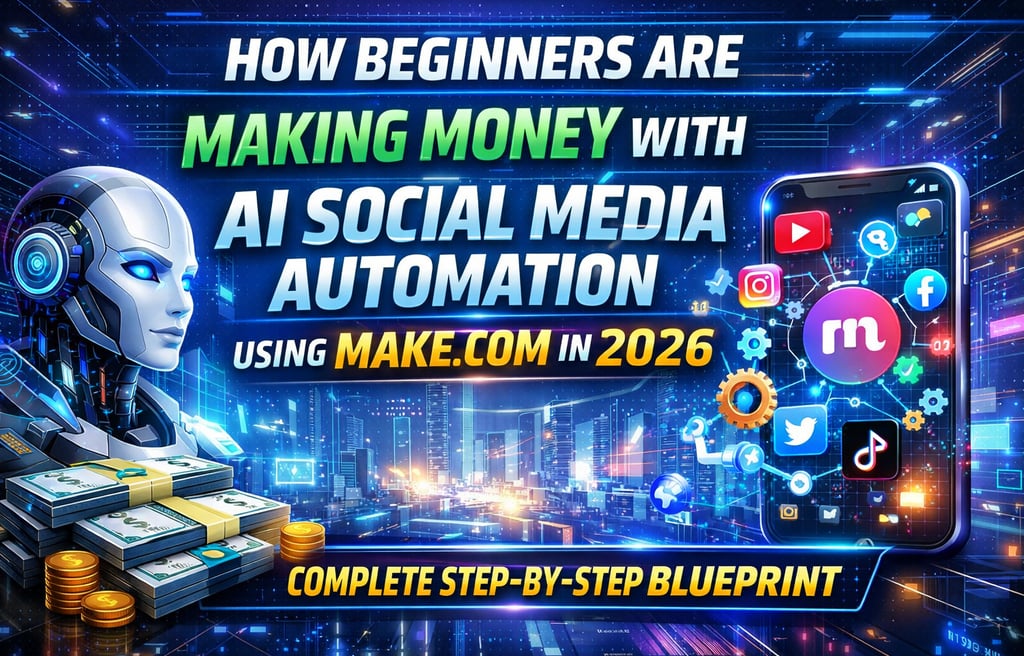
How Beginners Are Making Money with AI Social Media Automation Using Make.com in 2026 (Complete Step-by-Step Blueprint)
Learn how beginners are making money using AI social media automation with Make.com in 2026. Step-by-step workflow, tools, and proven prompts for income.
TECHNOLOGY & AIAUTOMATIONAI TOOLS,AI FOR BEGINNERSONLINE EARNING & AI TOOLS
DIPJYOTI SHARMA
2/22/202623 min read
Every week, thousands of small business owners wake up knowing they should post on LinkedIn, Instagram, Facebook, and X — and every week, they don't. Not because they lack ideas, but because they lack time, systems, and staff.
That gap is your opportunity.
In 2026, the automation economy has matured to the point where a beginner with zero coding skills, minimal investment, and a few hours of setup can build a fully automated AI social media system — and sell it as a service to businesses that desperately need it.
The tools are accessible. The demand is real. And most importantly, the market is still wide open for beginners who move fast.
This is not a theory article. By the time you finish reading, you will know exactly what to build, how to sell it, and how to earn your first $500–$5,000/month from AI social media automation using Make.com.
No YouTube required. No paid courses. No guesswork.
Table of Contents
What Is AI Social Media Automation?
Why Businesses Pay for Automation
What Is Make.com? (Beginner Explanation)
How Beginners Make Money — The Four Models
The Complete Automation Workflow (Step-by-Step)
Workflow Diagram Explained
Exact AI Prompts Used Inside the Automation
Step-by-Step Make.com Build Guide
Client Acquisition Master Guide
How to Convince Clients (The Pitch System)
Common Questions Clients Ask (New)
Lead Generation System — Finding 20–30 Leads Daily
Pricing Table, Tools Table, and Earnings Roadmap
Common Beginner Mistakes
Scaling to $1,000/Month and Beyond
The Future of AI Automation in 2026
Quick Start Checklist + 7-Day Action Plan
FAQ — Frequently Asked Questions
What Is AI Social Media Automation?
Think of AI social media automation like hiring a full-time content team — except it works 24/7, costs a fraction of the price, and never misses a deadline.
Here's the simple version: you give the system a topic (e.g., "3 tips for restaurant owners to get more reviews"), and the automation does the rest. It researches the topic, generates platform-specific content, formats each post for LinkedIn, Facebook, Instagram, and X, and publishes everything automatically on a schedule you set.
Real example: A local gym owner wants to post daily fitness tips across all four platforms. With an AI automation workflow, they enter one idea into a Google Sheet on Monday morning. By Tuesday, 4 posts are live — each one written in the tone of the platform, with hashtags, captions, and formatting already handled. The gym owner spent 2 minutes. The automation did the rest.
That is AI social media automation in 2026.
2. Why Businesses Pay for Automation
Businesses don't pay for "automation." They pay to solve painful, specific problems. Here are the four pain points that make AI social media automation an easy sell:
Time loss. The average small business owner spends 6–10 hours per week on social media — writing, scheduling, designing, and engaging. That's time pulled away from their actual business. Automation gives that time back.
Inconsistent posting. When life gets busy, posting stops. Algorithms punish inconsistency. Reach drops, engagement falls, and months of brand-building are lost. An automated system posts on schedule regardless of how busy the owner is.
Hiring cost. A dedicated social media manager costs $3,000–$6,000/month in salary plus benefits. A freelance content creator charges $1,500–$3,000/month. Your automation service delivers similar results for $300–$1,500/month, making it a no-brainer offer.
Low engagement. Generic, rushed posts get ignored. AI-generated content, when prompted correctly, is tailored, specific, and platform-native. LinkedIn posts sound like LinkedIn posts. Instagram captions feel like Instagram captions. Better content means better engagement.
When you position your service around solving these four problems — not around "automation" or "AI" — clients sign up fast.
3. What Is Make.com? A Beginner Explanation
Make.com (formerly Integromat) is a visual, no-code automation platform. Think of it as digital LEGO: you connect different apps and tools together using building blocks, and data flows automatically between them based on rules you define.
You don't write code. You drag, drop, configure, and connect.
Here's why Make.com is the right tool for this business:
Visual interface: You can see exactly what's happening at every step of your workflow.
Massive app library: Make.com integrates with 1,500+ apps including OpenAI, Google Sheets, LinkedIn, Facebook, Instagram, and X.
Affordable pricing: The free plan handles 1,000 operations/month. The Core plan at $9/month handles 10,000 — plenty for multiple client accounts.
Scheduler built in: Set your workflow to trigger daily, weekly, or at specific times with one click.
Error logs: If something breaks, Make.com shows you exactly where and why.
No-code matters because it removes the biggest barrier most beginners face: needing to be a developer. With Make.com, you can be operational in 24–48 hours.
4. How Beginners Make Money — The Four Models
There are four proven ways to monetize AI social media automation as a beginner. Pick one to start, then layer the others as you grow.
Model 1: Automation Freelancer
You build custom automation workflows for clients on a project basis. A client pays you $300–$800 to set up their Make.com scenario. Once built and tested, you hand it over. It's one-time income, but it builds your portfolio fast and requires no ongoing support.
Best for: First 30 days, while you're still learning.
Model 2: Monthly Retainer Service
You build the automation and manage it on behalf of the client. You charge $300–$1,200/month to keep the system running, monitor it, update prompts, and ensure posts go out consistently.
Best for: Building predictable, recurring income. Three clients at $500/month = $1,500/month.
Model 3: Micro AI Automation Agency
You package your service into defined tiers (Starter, Growth, Pro) and serve multiple clients simultaneously. You may bring in a virtual assistant to handle onboarding and client communication. This is where $3,000–$8,000/month becomes realistic.
Best for: Months 3–6 once you've refined your workflow.
Model 4: White-Label Automation Service
You build automation systems for other agencies or freelancers who resell them to their own clients under their brand. You work in the background and get paid wholesale. Less client interaction, more scalable.
Best for: After you've built 5+ successful workflows and understand the system deeply.
5. The Complete Automation Workflow
Here is the exact workflow you will build inside Make.com. Each module plays a specific role.
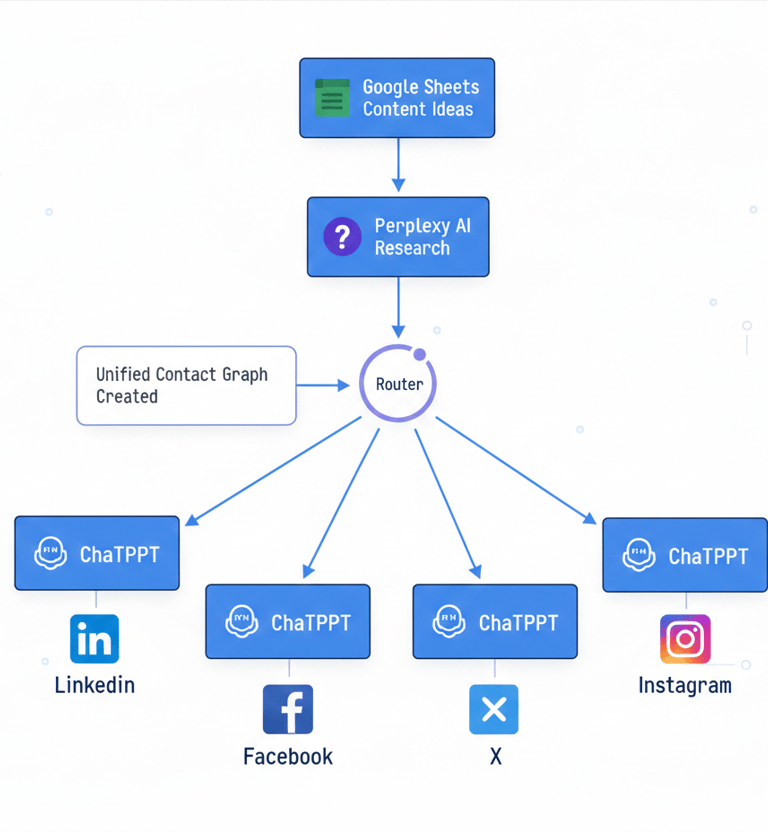
[Google Sheets Content Ideas]
↓
[Perplexity AI Research]
↓
[Router]
↙ ↓ ↘ ↘
[ChatGPT] [ChatGPT] [ChatGPT] [ChatGPT]
↓ ↓ ↓ ↓
LinkedIn Facebook X Instagram
Module 1: Google Sheets — The Content Idea Hub
Your Google Sheet is the control panel. Each row contains a content idea, topic, business niche, target audience, and posting date. When the scenario runs, Make.com reads the next unprocessed row and passes that data into the workflow.
What it does: Acts as the human brain of the system. The business owner (or you) adds topics here. The automation handles everything else.
Columns to include: Topic | Niche | Target Audience | Tone | Status | Date Posted
Module 2: Perplexity AI — Research & Context
Perplexity AI is connected via API. It receives the content topic and returns current, relevant information — statistics, trends, insights — that make the AI-generated posts factual and timely rather than generic.
What it does: Prevents hallucinations and adds real-world credibility to every post.
Make.com connection: Use the HTTP module to call the Perplexity API with the topic from Google Sheets.
Module 3: Router — The Traffic Director
The Router is a Make.com native module that splits one data stream into multiple parallel paths. After Perplexity returns the research, the Router sends that research data to separate ChatGPT modules — one for each platform.
What it does: Ensures each platform gets its own dedicated content generation process, not a one-size-fits-all post.
Module 4: OpenAI (ChatGPT) — Platform-Specific Content Generator
You connect four separate OpenAI modules, each with a custom system prompt tailored to the platform. The LinkedIn module gets a prompt optimized for LinkedIn tone and length. The Instagram module gets one optimized for captions and hashtags. And so on.
What it does: Generates unique, high-quality content for each platform from the same core idea.
Module 5: HTTP Modules — The Publisher
Once content is generated, HTTP modules (or native Make.com modules for LinkedIn and Facebook) publish the posts directly to each platform via their APIs.
What it does: Eliminates manual copy-pasting and scheduling. Posts go live automatically.
6. Workflow Diagram Explained
🖼️ Visual Diagram: (See the workflow diagram image below — optimized for Pinterest and social sharing)
[Google Sheets Content Ideas]
↓
(Topic, niche, audience, tone pulled from next row)
↓
[Perplexity AI Research]
(Returns stats, trends, real-world context)
↓
[Router]
↙ ↓ ↘ ↘
[ChatGPT] [ChatGPT] [ChatGPT] [ChatGPT]
(LinkedIn) (Facebook) (X/Twitter) (Instagram)
↓ ↓ ↓ ↓
LinkedIn Facebook X Instagram
(Post) (Page Post) (Tweet) (Caption + Hashtags)
Each branch is completely independent. If the LinkedIn post fails (API error, rate limit), the other three platforms are unaffected. The Router makes the system resilient and scalable.
The Google Sheet row status column is updated to "Posted" after each successful publish, preventing duplicate posts.
7. Exact AI Prompts Used Inside the Automation
These are copy-paste ready prompts you configure inside your OpenAI modules in Make.com. Replace the {{variables}} with Make.com dynamic field references.
Prompt 1: Master Content Generator
You are a professional content strategist. Topic: {{topic}} Research context: {{perplexity_output}} Business niche: {{niche}} Target audience: {{audience}} Tone: {{tone}} Generate a comprehensive content brief with 3 key talking points, one surprising fact, and one actionable takeaway. Keep the brief under 200 words.
Prompt 2: LinkedIn Post
You are a LinkedIn content expert. Use this content brief: {{master_brief}} Write a LinkedIn post (150–300 words) that: - Opens with a bold hook (no "I'm excited to share" openers) - Uses short paragraphs (1–2 sentences max) - Includes a personal or industry insight - Ends with a clear call-to-action or question - Uses line breaks for readability - Avoids hashtags in the body; place 3 hashtags at the end
Prompt 3: Facebook Post
You are a Facebook page content expert. Use this content brief: {{master_brief}} Write a Facebook post (100–200 words) that: - Feels conversational and warm - Speaks directly to {{audience}} - Includes a relatable question or statement to drive comments - Ends with a clear CTA (comment, share, or visit link) - Adds 3–5 relevant emojis naturally throughout
Prompt 4: Instagram Caption
You are an Instagram content strategist. Use this content brief: {{master_brief}} Write an Instagram caption (80–150 words) that: - Hooks immediately in the first line (before the "more" cut) - Uses a casual, engaging tone - Tells a micro-story or shares a quick tip - Ends with a question to drive comments - Followed by a line break and 15–20 relevant hashtags grouped at the end
Prompt 5: X (Twitter) Post
You are a Twitter/X copywriter. Use this content brief: {{master_brief}} Write a tweet thread (3 tweets, each under 280 characters) that: - Tweet 1: Bold, provocative opening statement - Tweet 2: Evidence, stat, or real example - Tweet 3: Actionable takeaway + question - Separate each tweet with --- - No hashtags unless naturally inserted (max 2)
Prompt 6: Image Generation Prompt (DALL-E / Midjourney)
Create a professional social media image for a {{niche}} business. Visual concept: {{master_brief key point}} Style: Clean, modern, minimalist Color scheme: {{brand_colors or "professional blue and white"}} Include: A bold text overlay with the phrase "{{short_hook}}" Format: Square (1:1), suitable for Instagram and Facebook No people's faces. No text errors. High contrast.
Prompt 7: Carousel Image Prompt
Design a 5-slide carousel for Instagram on the topic: {{topic}} Slide 1: Bold title card — "{{hook_statement}}" Slide 2: Problem — "Most {{audience}} struggle with {{pain_point}}" Slide 3: Solution step 1 Slide 4: Solution step 2 Slide 5: CTA — "Save this + follow for more" Style: Consistent brand colors, clean sans-serif font, minimal design.
Prompt 8: Auto Hashtag Generator
Generate 20 high-engagement hashtags for this topic: {{topic}} Niche: {{niche}} Platform: {{platform}} Mix of: 5 broad (1M+ posts), 10 medium (100K–1M posts), 5 niche (<100K posts) Format as a single line, space-separated.
The ONE IDEA → MULTI-PLATFORM Concept
The core philosophy is simple: one great idea, multiplied across platforms automatically. You enter a single topic. Perplexity researches it. The Router creates four parallel threads. Each thread becomes a platform-native post. That one input generates 4–8 pieces of content in under 60 seconds — content that would take a human 3–4 hours to write manually.
This is the value you sell.
8. Step-by-Step Make.com Build Guide
Step 1: Account Setup
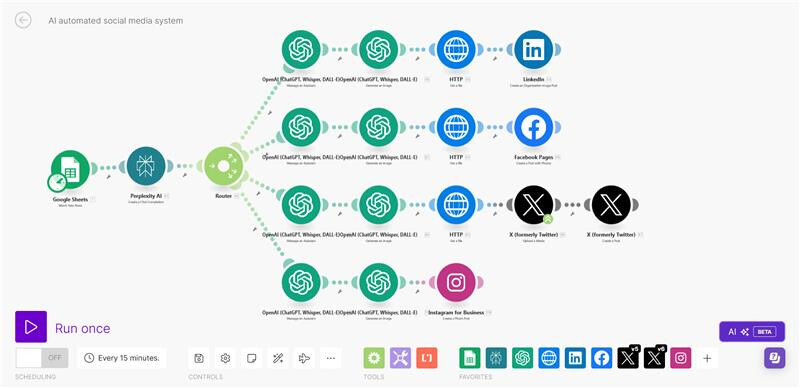
Go to Make.com and create a free account. Navigate to "Scenarios" and click "Create a new scenario." This is your blank canvas. Familiarize yourself with the interface: modules are the blocks, arrows are the connections, and the bottom toolbar controls scheduling and running.
Step 2: Connect OpenAI
In your scenario, add an OpenAI module. Click the connection field and select "Create a connection." You'll need your OpenAI API key from platform.openai.com. Name the connection "OpenAI Main" and save. Test it with a simple text generation to confirm it works.
Step 3: Connect Social Platforms
For LinkedIn and Facebook, Make.com has native modules. Search "LinkedIn" in the module library and add "Create a Post." Authenticate with OAuth by clicking the connection and logging into your LinkedIn account. Repeat for Facebook Pages. For X and Instagram, you'll use the HTTP module with their respective APIs (Twitter API v2, Instagram Graph API). Store your API keys in Make.com's secure "Data Stores."
Step 4: Create the Scenario Structure
Build left to right: Start with the Google Sheets "Watch Rows" module. Connect it to the HTTP module for Perplexity AI. Connect Perplexity's output to the Router. From the Router, branch into four OpenAI "Create a Completion" modules. Connect each to its respective social platform publishing module.
Step 5: Router Configuration
Click the Router module and configure each path. Set Path 1 to always pass (LinkedIn), Path 2 to always pass (Facebook), and so on. You can add filters if you want certain topics to skip certain platforms (e.g., a restaurant tip skips LinkedIn). Label each path clearly.
Step 6: Scheduling the Automation
Click "Scheduling" at the bottom of the scenario editor. Set it to run daily at your preferred time (e.g., 7:00 AM for the client's time zone). The scenario will automatically pull the next unprocessed row from Google Sheets and execute the full workflow.
Step 7: Test the Workflow
Before going live for a client, click "Run Once" with a test row in your Google Sheet. Watch each module execute in real time. Make.com highlights errors in red. Common issues: wrong sheet ID, empty variables, missing API scopes. Fix each, rerun, and confirm all four posts publish correctly.
Common Beginner Mistakes to Avoid:
Not marking processed rows as "Done" — causes duplicate posts
Using the same OpenAI prompt for all platforms — outputs are generic
Skipping the Perplexity step — posts lack credibility
Not testing with the client's actual accounts before going live
Forgetting to set rate limits — X API has strict posting limits
Using a shared API key across client accounts — creates security and billing issues
9. Client Acquisition Master Guide
Building the workflow is 30% of the business. Finding and signing clients is the other 70%.
Fiverr Strategy
Create a Fiverr gig titled: "I will build an AI social media automation system using Make.com." Price it at $299 for setup, $499 for setup + 30-day management. Use a video thumbnail showing your workflow diagram. In the description, lead with the business problem: "Tired of spending hours on social media? I'll automate it." Optimize with keywords: AI social media, Make.com automation, automated posting.
Deliver your first 2–3 gigs at cost or discounted to build 5-star reviews fast. Reviews on Fiverr are everything.
Upwork Proposal System
Search Upwork for "social media manager," "content scheduler," "automation specialist," and "Make.com." When you apply, skip the template pitch. Open with: "I noticed you need consistent social media posting. I build AI automation systems that post daily across all platforms automatically — no manual work required." Keep proposals under 150 words. Attach a short Loom video showing your workflow live.
LinkedIn Outreach
Use LinkedIn's free search to find owners of local businesses, coaches, consultants, and agencies. Filter by title (Owner, Founder, CEO) and industry. Send a connection request with a note: "Hey [Name], I help [niche] businesses automate their social media using AI — posts themselves daily. Mind if I share how?" Follow up once after 3 days if no response.
Facebook Business Groups
Join groups like "Business Owners Community," "Entrepreneurs Hub," and niche-specific groups (e.g., "Restaurant Owners Network"). Provide value first — answer questions, share tips. After 1–2 weeks, post a short case study or offer a free audit. Direct message members who mention social media struggles.
Cold DM Strategy
On Instagram and X, search business hashtags in your target niche. Find accounts with 1K–20K followers that post inconsistently (gaps of 2+ weeks, low engagement). Send this DM: "Hi [Name], I love what you're doing with [specific product/service]. I noticed your posting has been inconsistent lately — I build AI systems that automate this completely. Happy to show you a quick demo?"
Local Business Outreach
Walk into local restaurants, salons, gyms, and boutiques. Introduce yourself as a "social media automation specialist." Most local business owners have never heard of this. Show them a live demo on your phone. Offer a free 7-day trial — one week of automated posts at no cost. Close on a monthly retainer afterward.
Instagram Business Search
Search Instagram for local businesses (e.g., "Miami dentist," "Austin bakery"). Check their posting frequency and engagement. If they post rarely or their engagement is low, they're a prime prospect. DM them directly.
Daily Action Plan
A daily 90-minute client acquisition routine:
30 minutes: Send 10 cold DMs on Instagram/X/LinkedIn
20 minutes: Respond to inquiries and follow up with leads from Day 3–5
20 minutes: Post one value piece on your own LinkedIn or Instagram
20 minutes: Browse Fiverr/Upwork for new leads and submit 2 proposals
Do this every day for 30 days. You will land clients.
10. How to Convince Clients — The Pitch System
Beginner Pitch Framework
Use the Pain → Solution → Result framework in every conversation:
Pain: "Most [niche] businesses lose clients and revenue because they're invisible on social media — they just don't have time to post consistently."
Solution: "I build an AI automation system that posts high-quality content to LinkedIn, Instagram, Facebook, and X every day — automatically. You add one idea to a spreadsheet per week. The system handles the rest."
Result: "My clients see consistent posting within 48 hours, and most report better engagement and 2–3 new inbound inquiries per month from social media within 60 days."
ROI Explanation Formula
Help clients calculate their own ROI:
"If this system generates just one new client per month, and your average client is worth $500, that's $500 revenue from a $400/month service. You're net positive from day one, and your brand is building in the background every single day."
Sample DM Script
Hi [Name], I help [niche] businesses automate their social media completely — daily posts across LinkedIn, Instagram, Facebook, and X, without them lifting a finger. I built this using AI + automation tools, and my clients save 8–10 hours per week and see consistent engagement growth. Would you be open to a 15-minute call to see if it fits what you're doing? [Your Name]
Discovery Call Questions
Ask these to qualify and close:
"How many hours per week does your team currently spend on social media?"
"What platforms do you feel you're underperforming on?"
"Have you tried hiring a social media manager? What happened?"
"If your posting was consistent and automated, what would you do with that extra time?"
"What does a new client typically mean to your revenue?"
These questions surface pain points and plant ROI seeds — making your close almost effortless.
11. Common Questions Clients Ask — And How to Answer Them
When you're on a sales call or responding to a DM, prospects will test you with hard questions. Here are the most frequent objections and exactly how to handle each one.
"Will the posts sound robotic or fake?"
Your answer: "Great question — that was true of early AI content. The system I use is trained with platform-specific prompts that match the tone of each channel. LinkedIn posts sound like LinkedIn. Instagram captions feel human and conversational. I also review content regularly and update the prompts based on what performs best. You won't be able to tell it's automated."
The real reason this works: Custom prompts + Perplexity-researched context = posts grounded in real facts with a natural voice.
"What if I want to approve posts before they go live?"
Your answer: "Absolutely — I can build in an approval step. The content gets generated and dropped into a shared Google Sheet or Notion doc. You review it, give a thumbs up or leave a comment, and the system publishes only what you approve. You stay in control without doing the writing."
Tip: Offer this as your "Pro" tier to justify higher pricing.
"Do I need to give you access to all my social accounts?"
Your answer: "Yes, but it's done through secure API connections — I never see your password. You authorize the connection through LinkedIn's or Facebook's official login, just like connecting any third-party app. You can revoke access at any time, instantly."
"What happens if a post goes out wrong or at the wrong time?"
Your answer: "Make.com logs every action with timestamps. If something publishes incorrectly, I can see exactly what happened and fix it within hours. I also set up error notifications so I'm alerted before you even notice. And the system is built with platform rate limits in mind, so timing issues are prevented by design."
"I already tried scheduling tools like Buffer. How is this different?"
Your answer: "Buffer schedules content you've already written. This system generates the content from just a topic — research, writing, formatting, and publishing are all handled automatically. You go from idea to published post on four platforms without touching a keyboard. That's the difference between a scheduler and an autonomous content machine."
"How long does it take to set up?"
Your answer: "I can have your system live and posting within 48–72 hours of getting your account access and a few content topics. The first week is a calibration period where I fine-tune the tone and style to match your brand. After that, it runs hands-free."
"What if I want to stop? Am I locked in?"
Your answer: "No contracts. I work month-to-month. If you decide to pause or cancel, I give you a full handover document and keep the workflow accessible so you can restart anytime. The system belongs to your Make.com account — not mine."
12. Lead Generation System — Finding 20–30 Leads Daily
Free Lead Tools
Use these tools without spending a dollar:
LinkedIn free search: Filter by title, location, and industry
Instagram hashtag search: Find businesses in any niche
Google Maps: Search "restaurant [city]" or "gym [city]" — hundreds of local businesses with contact info
Apollo.io free plan: 50 free email leads per month with business emails
Hunter.io: Find email addresses for any domain
Tracking Sheet System
Build a Google Sheet with these columns:
| Lead Name | Business | Platform Found | Contact Method | Date Contacted | Status | Follow-Up Date | Notes |
Update this daily. Never let a lead fall through the cracks.
Follow-Up Timing Strategy
Day 1: First outreach (DM, email, or LinkedIn)
Day 3: First follow-up (short: "Just checking if you saw my message")
Day 7: Second follow-up (add a new value piece: a quick tip or mini case study)
Day 14: Final follow-up ("I'll be closing my availability for this niche next week — happy to hop on a quick call if timing works")
Most sales happen on the 3rd–5th touchpoint. Most beginners give up after one message.
Automation Outreach Concept
Once you're comfortable, automate your own outreach using Make.com. Connect LinkedIn's API (or Phantombuster for scraping), filter leads by criteria, and send automated DMs with personalized variables. This scales your lead generation without adding hours to your day.
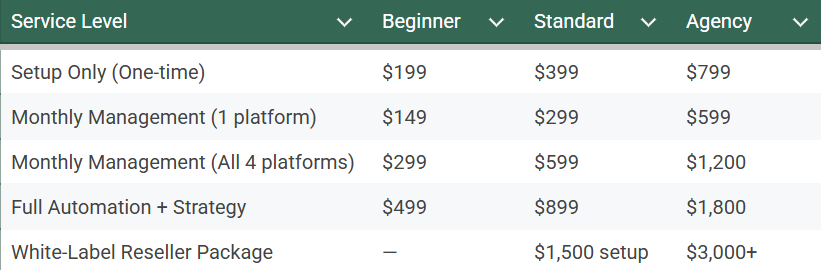
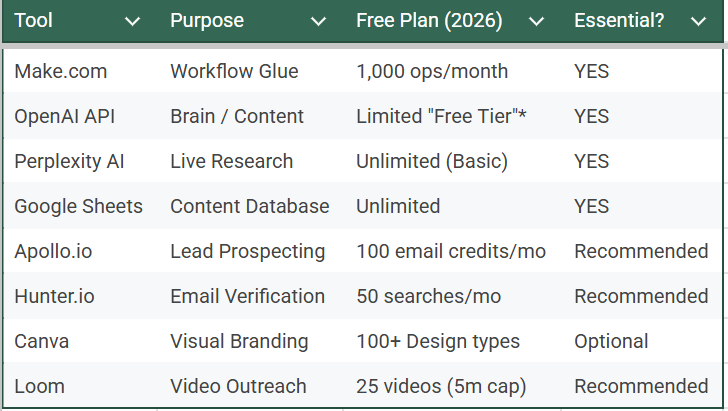
12. Pricing, Tools, and Earnings Tables
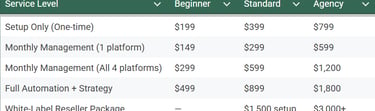
Pricing Table
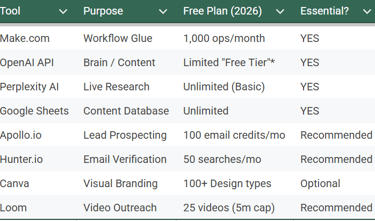
Tools Table
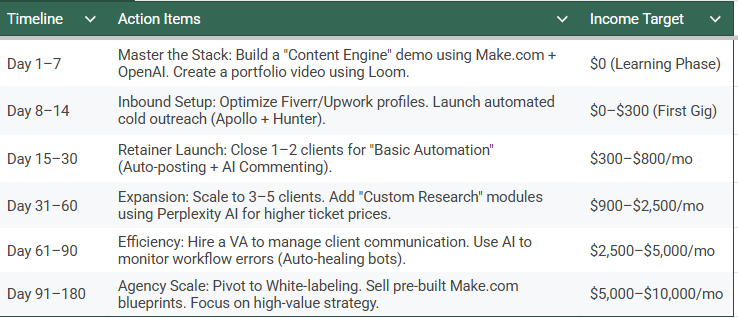
Earnings Roadmap
13. Common Beginner Mistakes
Trying to build everything perfectly before outreach. Your first workflow doesn't need to be flawless. A working, testable demo is enough to sell. Build 80%, start selling, refine as you go.
Charging too little out of fear. Underpricing signals low quality. A $99/month automation service makes businesses skeptical. Charge what reflects the value delivered: 8+ hours of saved time per week.
Targeting everyone. Niche down. "AI social media automation for real estate agents" converts better than "AI automation for any business." A clear niche = faster trust = faster sales.
Ignoring follow-up. 80% of sales happen after follow-up. Send that Day 3 message. Send the Day 7 message. Most of your competitors won't.
Not creating a demo account. Build a demo Make.com scenario with fake client data. When you hop on a call, run it live. Watching content generate in real time closes deals better than any sales script.
14. Scaling to $1,000/Month and $5,000/Month
Scaling to $1,000/Month
This is a 2–3 client milestone. At $300–$400/month per client on a 4-platform retainer, you reach $1,000 with three paying clients. To get there:
Run the daily 90-minute outreach routine for 21 days straight
Offer a free 7-day trial to your first 2 prospects to remove risk
Ask every client for a referral after 30 days of service
Post one case study per week on your LinkedIn/Instagram
Scaling to $5,000/Month
At $5,000/month, you're operating a real agency. Here's the model: 5 clients at $1,000/month each. To reach this tier:
Raise prices once you have 3 clients and a proven system
Hire a virtual assistant ($5–$10/hour) to handle onboarding and client communication
Build a referral incentive: "Refer a business owner and earn $100 for every client they become"
Create a case study PDF with real engagement stats from your best client
Launch a LinkedIn content series positioning yourself as the AI automation expert in your niche
The difference between $1K/month and $5K/month is not a better workflow — it's a better sales and referral system.
15. The Future of AI Automation in 2026
AI social media automation is not a trend — it's an infrastructure shift. Here's what's accelerating in 2026 and what it means for your business:
Multi-modal content automation is now mainstream. AI doesn't just write text — it generates matching images, short-form video scripts, and audio narration from a single prompt. Your workflow will soon produce complete content packages, not just captions.
Hyper-personalization at scale is becoming the competitive standard. Future automations will pull CRM data and personalize every post based on segment, lifecycle stage, and behavior — without manual input.
Autonomous AI agents are entering Make.com-style platforms. These agents don't just run when triggered — they monitor performance, adjust prompts, and optimize posting times based on engagement data autonomously.
Platform AI integrations (LinkedIn's AI, Meta's AI tools) mean your automations will interact with native AI layers, not fight against them.
Businesses that adopt automation now will have a compounding advantage. Every month of consistent AI-powered posting builds brand authority, audience trust, and search visibility that can't be bought later. The window to enter this market as a beginner is open — but it won't stay open forever.
Quick Start Checklist
Create Make.com account (free)
Get OpenAI API key (platform.openai.com)
Get Perplexity AI API key (perplexity.ai/api)
Create a Google Sheet with content template columns
Build your first Make.com scenario (Google Sheets → Perplexity → Router → OpenAI × 4)
Connect LinkedIn, Facebook, X, and Instagram APIs
Configure all 8 AI prompts (customize for your client's niche)
Run a test with 3 dummy content rows
Create a Fiverr gig and/or Upwork profile
Build your lead tracking spreadsheet
Send your first 10 cold DMs today
Follow up with all leads on Days 3, 7, and 14
7-Day Beginner Action Plan
Day 1: Create Make.com, OpenAI, and Perplexity accounts. Watch the Make.com intro tour (15 min).
Day 2: Build the Google Sheets → Perplexity module connection. Test with 3 topics.
Day 3: Add the Router + 4 OpenAI modules. Paste in all 8 prompts and customize them.
Day 4: Connect LinkedIn and Facebook natively. Set up X and Instagram via HTTP + API.
Day 5: Run a full test. Fix all errors. Confirm all 4 posts publish successfully.
Day 6: Create your Fiverr gig and Upwork profile. Record a 2-minute Loom demo video of your workflow running.
Day 7: Send 15 cold DMs using the script above. Set calendar reminders for Day 3, 7, and 14 follow-ups.
Realistic Motivation
Here's the truth no one tells you: the first 30 days feel slow. You'll build the workflow and wonder if anyone will pay for it. You'll send DMs and hear nothing. You'll question whether this is worth it.
Keep going.
The businesses that need this service are everywhere. They're posting sporadically, watching competitors grow, and telling themselves they'll "get serious about social media next month." You are the solution to a problem they already know they have.
Your job is not to convince people that social media matters — they already believe that. Your job is to show them that someone (you) can take it completely off their plate for less than the cost of one new employee per month.
The market is real. The tools are ready. The only remaining variable is whether you start today or next month.
Start today.
18. FAQ — Frequently Asked Questions
Q: Do I need coding skills to build a Make.com automation?
No. Make.com is a fully visual, drag-and-drop platform. You connect modules by clicking, configure settings through forms, and test your workflow with a single button. The only "technical" step is copying and pasting API keys from OpenAI and Perplexity — both services give you clear instructions. If you can use Google Sheets, you can build this workflow.
Q: How much does it cost to run this automation system per month?
Your baseline costs are approximately $9/month for Make.com Core plan, $5–$20/month in OpenAI API usage (depending on post volume), and $5–$10/month for Perplexity API. Total operating cost: roughly $20–$40/month per client account. At $300–$800/month per client, your profit margin is 85–95%.
Q: How many clients can I manage at once as a beginner?
With one Make.com account and good organization, you can comfortably manage 5–10 clients. Each client gets their own scenario (workflow), their own Google Sheet, and their own API connections. Make.com's paid plans scale with usage. Most beginners feel comfortable with 3–5 clients before hiring help.
Q: Can I use this system for my own social media first?
Yes — and you should. Building the workflow for your own brand first gives you a demo, case study data, and the confidence to sell it. Run it for 30 days on your LinkedIn or Instagram, screenshot the engagement stats, and use those numbers when pitching clients.
Q: What niches are best for selling AI social media automation?
The highest-converting niches in 2026 are real estate agents, restaurants and cafés, fitness coaches and gyms, marketing agencies, e-commerce brands, local service businesses (dentists, plumbers, lawyers), and B2B SaaS companies. Prioritize niches where consistent content directly drives revenue — where the cost of inaction is obvious.
Q: Is AI social media automation against platform terms of service?
Using AI to assist in content creation is fully permitted on all major platforms including LinkedIn, Facebook, Instagram, and X. Automated publishing via official APIs is also permitted when you use platform-approved API access — which is exactly what Make.com uses. The key is using official API connections (OAuth authentication) rather than browser automation or bot-like behavior.
Q: How long before I make my first $500?
With consistent outreach starting on Day 7, most beginners land their first paid client within 14–21 days. That first client typically pays $200–$500 for setup or $300–$500/month for management. The fastest path: offer a free 7-day trial, deliver real results, convert to a paid retainer.
Q: What if a social media platform changes its API?
This happens occasionally (X/Twitter is the most frequent example). When APIs change, Make.com typically updates its native modules within weeks. For HTTP-based connections, you update the endpoint URL and authentication headers — a 15-minute fix. Following Make.com's community forums and status page keeps you ahead of changes.
Q: Can I automate Instagram posting without getting banned?
Yes — when done correctly. Instagram allows automated posting through the official Meta Graph API for Business accounts. You need a Facebook Page connected to an Instagram Business account, and a Meta Developer App with the correct permissions. Make.com walks you through this connection step-by-step. Personal Instagram accounts cannot be automated this way.
Q: What's the difference between Make.com and Zapier for this use case?
Both platforms can handle this workflow, but Make.com is preferred for three reasons: it's significantly more affordable at scale (Zapier's comparable plan costs 3–5x more), it has a more flexible Router module for multi-branch workflows, and its visual canvas makes complex multi-step automations easier to build and debug. For AI social media automation businesses, Make.com is the industry standard in 2026.
This article was written for beginners entering the AI social media automation space in 2026. All tools, pricing, and strategies reflect current market conditions. Update your workflow prompts quarterly as AI models and social platform APIs evolve.
AI social media automation doesn’t exist in isolation. Behind every successful automation system is a combination of specialized AI tools — each solving a different part of the workflow.
If you want to build a complete AI-powered business in 2026, understanding how different AI platforms work together is essential.
Here are three powerful AI tools beginners should understand alongside Make.com automation.
Gauth AI — AI Research & Problem-Solving Assistant
Before automation generates content, it needs accurate information and structured ideas. That’s where tools like Gauth AI become valuable.
Gauth AI works as an intelligent AI tutor and research assistant that helps users analyze questions, generate explanations, and break down complex topics step by step. Tools like this are useful when preparing educational or niche-specific content for automated posting workflows.
For example:
Researching industry tips
Generating educational insights
Creating structured content ideas
Understanding technical topics quickly
If you want a full beginner explanation of how this AI tool works, read:
👉 What Is Gauth AI? Complete Beginner Guide (2026)
https://simplifiedaihub.com/what-is-gauth-ai-complete-beginner-guide-2026
Learning research-focused AI tools helps improve automation quality because better input always creates better AI-generated output.
Grammarly AI — Content Optimization & AI Writing Intelligence
Automation generates content — but optimization makes it professional.
Grammarly AI uses advanced AI writing systems to improve clarity, tone, grammar, and engagement in real time. Modern versions even include AI agents that help draft, revise, and refine communication across apps automatically, improving productivity workflows.
In an automation workflow, Grammarly-style AI tools help:
refine AI-generated captions
maintain consistent brand voice
improve readability
adjust tone for professional audiences
This is especially useful when automating LinkedIn or business-focused content.
You can explore its full working system here:
👉 How Grammarly AI Works in 2026 — Complete Beginner Guide
https://simplifiedaihub.com/how-grammarly-ai-works-in-2026-complete-beginner-guide-features-explained
Combining automation + writing intelligence dramatically increases engagement quality.
Gemini AI — Advanced AI Reasoning & Multi-Task Automation
While ChatGPT generates content, platforms like Gemini AI are designed for deeper reasoning, analysis, and multi-modal workflows.
Gemini AI can assist with:
long-form content planning
advanced research summaries
data interpretation
automation decision logic
workflow ideation
Many automation creators now combine reasoning AI with Make.com to design smarter content pipelines instead of simple posting systems.
If you want a complete beginner-to-pro walkthrough, read:
👉 Gemini AI Full Tutorial 2026 — Beginner to Pro Guide
https://simplifiedaihub.com/gemini-ai-full-tutorial-2026-complete-beginner-to-pro-guide-advanced-features-explained
Understanding multiple AI tools allows you to move from basic automation to intelligent AI systems.